How to Share Sub Plans on the Viewboard
Create your substitute plans in Google Slides.
If you need support with this process, reach out to your ITC
Publish your slides to the Web:
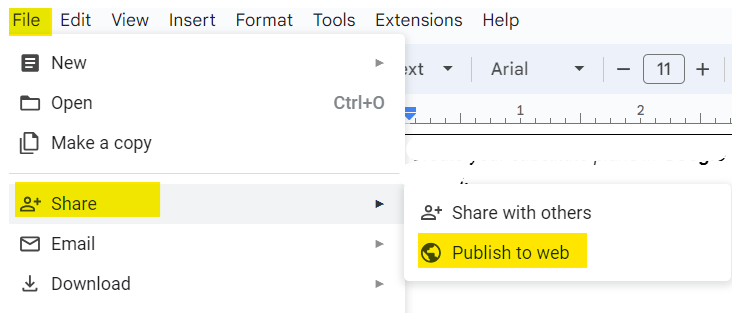
Go to File>Share>Publish to the Web
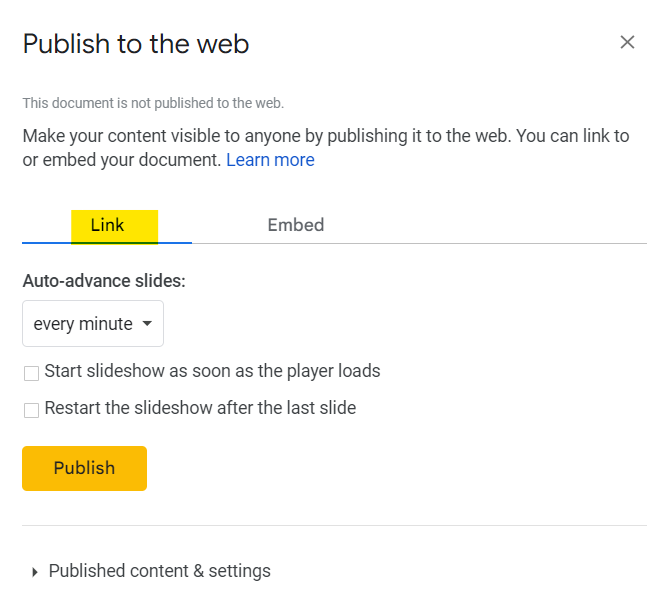
Adjust the Publish Settings**
- Under the Link Tab, leave boxes unchecked and select Publish
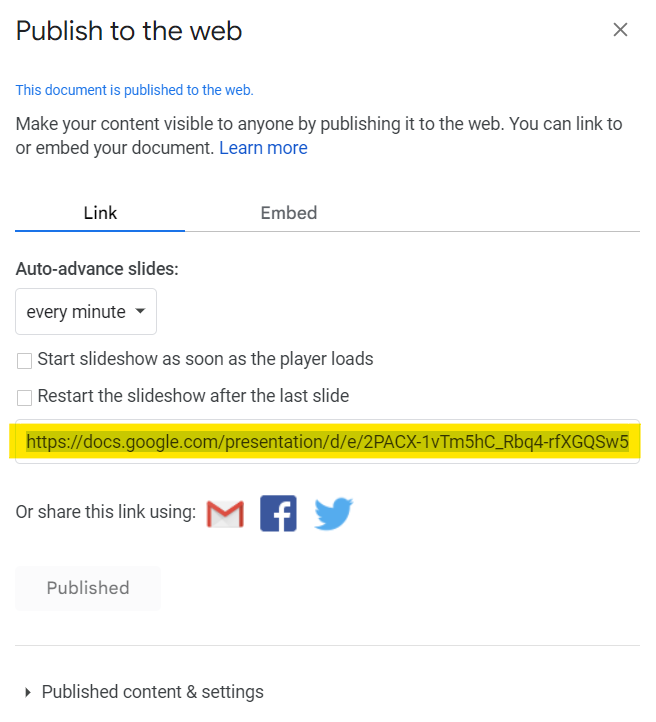
- Copy the published link in the next window
**Auto-advance timings will only apply if you auto-play your slides.
Create a shorter URL:
- Go to TinyURL or the URL shortener of your choice and paste the published link.
- Customize your link with a simple URL such as ”teacher name-Sub” or “Sub-teacher name”
- Select the green Shorten URL button
- Highly recommended option → place your shortened link on the 1st or 2nd slide of your sub plans for ease of access later!
Note: some shortened links may be case-sensitive.

Example: https://tinyurl.com/Sub-Hyman
Accessing Sub Plans, OPTION 1:
Bookmark your link for subs in advance.
The classroom teacher will:
open the internet browser of choice on the Viewboard
Type in the Tiny URL/short link in the address bar.
-
Bookmark the link
press the “star” (☆) or ribbon icon to create a bookmark; it will change color/appearance
Optional: modify the name of the bookmark to make it shorter. In Chromium, tap star again to edit.
Close the tab with your Sub Plans.
Test your Bookmark (see below).
Feel free to bookmark any other desired sites for ease of access.


Video demos: Chromium
To access plans, the substitute will:

Accessing Sub Plans, OPTION 2:
Provide the link to subs for manual access.
The classroom teacher will:
Provide the shortened link in written instructions and/or with grade level team.
To access plans, the substitute will:
Open Chromium (per your written directions) on the Viewboard
Type in the Tiny URL/short link in the address bar
Use the Sub plans slides to facilitate instruction, as directed.

If possible, test all content embedded on your sub plans slides when accessing from the ViewBoard.
Click on either link below for video demonstrations:
Additional considerations:
Make sure that any links embedded in your sub plans lead to sites that are available for public access.
If your school used the live.vrspot.hub for Morning Show announcements, you must use Chromium or the announcements will not play.
Some YouTube videos are not playing when embedded in Google Slides. As a workaround, you may take a screenshot of the video and then link the video to the image.
If you are including directions for students to access something that does require login access, such as Canvas, you may wish to take a screenshot of the Clever screen and/or the landing page for the site so that students may follow along with the sub; the sub can then walk around to monitor student progress.